Check a file for laser cutting, free
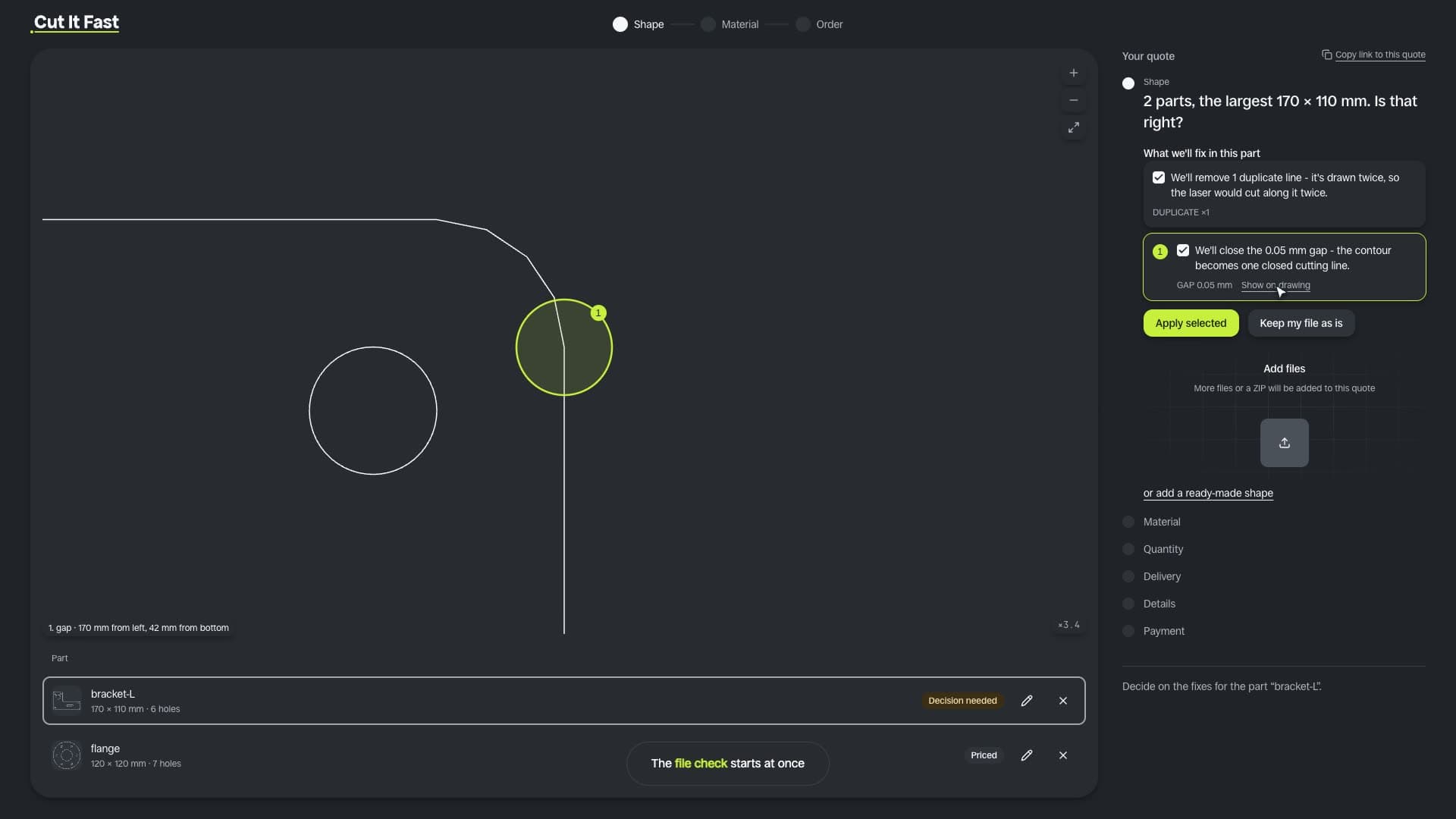
A free DXF file checker for laser cutting: drop a DXF, DWG, SVG or PDF and within seconds you get a list of what we will fix ourselves, what we will ask you about and what we won't cut, with a before/after preview and a price for eight sheets. No account; the result has its own link that you can pass on.
At Cut It Fast you see every fix to your file on a before-and-after drawing, you decide on each one, and you can download the exact DXF that goes to the laser before you pay. You can check a finished file straight away: Upload a file and see the price.
Drop files or click
Drawing DXF DWG SVG PDF LightBurn HPGL 3D model STEP STL OBJ 3MF Document DOCX XLSX PPTX Photo, scan JPG PNG HEIC WEBP TIFF BMP GIF several at once or a ZIP
 Video · 1:21Quote from a DXF file
What you get
- A list of fixes - what we repair ourselves, what we ask about, what we won't cut.
- A before/after preview with markers.
- A price straight away, for eight sheets.
What we check
| Check | What we do |
|---|---|
| Closed contour | A gap of up to 0.1 mm we close and ask you to approve, and a gap of up to 2 mm we ask about: “Close it?”. A bigger gap means an open contour, which we won't cut until you close it. |
| Duplicate lines | We remove duplicate lines and shapes (the laser would pass over them twice) and segments shorter than 0.01 mm; you approve this on the list. |
| Minimum hole size | A round hole smaller than 1.0 × the sheet thickness: we ask whether to enlarge it, remove it or leave it. The question appears after you choose the material. |
| Webs | A web narrower than 1.0 × the sheet thickness between holes, or narrower than 1.5 mm between a hole and the edge: we ask whether to leave it. |
| Stray lines and overlapping shapes | For a stray line we ask whether it is a slit or should be skipped. For overlapping contours we ask which one to keep. |
| Part size | A part larger than 3000 × 1500 mm (even when rotated) won't go through to the quote. If the smallest side is below 10 mm, we ask you to double-check the dimension. |
| Drawing complexity | A drawing with more than 5,000 points is too complex (usually a traced scan). You can simplify it in the editor. |
| Notes and curves | We do just two things without asking, because they don't change the shape to be cut: splines and ellipses become arcs and segments, and dimensions, text and descriptive layers don't go to cutting. |
Scale and units
Before we calculate the price, we ask whether the size of the part is right, for example that your part is 120 × 80 mm. A file in inches we convert to millimetres and tell you so; if the file doesn't state its units, we assume millimetres and tell you that too. A photo or a scan gets a price only after you give one dimension.
Units and scaleA file won't upload or there is no price
The most common reasons and what to do:
| Reason | What to do |
|---|---|
| The file is larger than 50 MB | Save the DXF without auxiliary layers and upload it again. |
| No closed contour | The quote stops and shows how much is missing. Close the contour with one click in the editor, or check in your own software that you saved the whole shape. |
| There are no lines to cut in the file | The file has only text or dimensions. Draw the outline with lines and convert lettering to curves. |
| A part larger than 3000 × 1500 mm | Check the dimensions and units in the file. If the part really is larger, it won't fit on the sheet. |
| The drawing has more than 5,000 points, or analysis takes too long | Simplify the drawing in the editor, or remove the frame, dimensions and hatching from the file. |
| An unreadable or unsupported file | Save the drawing as DXF 2000, or print it to PDF, and upload it again. A format we don't read (for example CDR, EPS, IGES or a native CAD file) gets export instructions in 2-3 steps. |
| A bent or milled part (STEP, STL) | We need a flat pattern: in your own software make the sheet-metal unfold, save it as a DXF at 1:1 scale and upload it. |
| A photo or a scan | The price appears once you give one dimension, which sets the scale. |
| Fixes are waiting for your decision | Until you settle the list of fixes you can't go on to payment. Go back to the list and either apply the ticked fixes or keep your file as it is. |